Posts

Showing posts with the label Microsoft Dynamics Navision

How to get request page value in navision report?

Image
For getting the value whatever selected by end user on request page of report we use "GETFILTER" function. Syntax : <Table Name>.GETFILTER(<Field Name>); Example: MESSAGE(FORMAT("Bank Account Ledger Entry".GETFILTER("Posting Date"))); it will shows posting date for 'Bank Account Ledger Entry' table selected by user.

How to get request page filter in navision report.

Image
For getting the value whatever selected by end user on request page of report we use "GETFILTER" function. Syntax : <Table Name>.GETFILTER(<Field Name>); Example: MESSAGE(FORMAT("Bank Account Ledger Entry".GETFILTER("Posting Date"))); it will shows posting date for 'Bank Account Ledger Entry' table selected by user.

How draw round Symbol in RDLC report.

Image
- First create new RDLC report. - Now add one text box to it and then right click on it and got to Expression…   -  And write the =”🌕" - Now click on Ok button and increase the font size of text box.   - Now generate the report it display like    - Now go to print button and click on it . - Select the ”foxit Reader” and save it in PDF file and then open it.    

How to convert date time to date in Microsoft Dynamics Navision.

Image
We use FORMAT function for convert any date format Ex. FORMAT("Bank Account Ledger Entry”. “Posting Date",0,' <Day,2>.<Month,2>.<Year4>') OUTPUT: 18.08.2016

How to put drop down list in report request page in Microsoft DynamicsNavision.

Image
First we create the report which is display the drop down list of the vendor, so user can select vendor and     generate report and apply this vendor number filter on report data. create new report. Go to “C/AL Globle” and define the variable name ‘Vendor’     Vendor Text 50 Go to “Request page” and add this vendor to page.   -Now got to properties of this vendor And set the ScourceExpr and TableRelation properties value if not set. As show in below image   SourceExpr : Vendor TableRelation : Vendor.No. Now save the report and run it, it will display like.

The .NET Framework object Microsoft.Office.Interop.Excel.ApplicationClass cannot run on this client.

Image
Try to set ServicePrincipalNameRequired  =TRUE in ClientUserSettings file for this user GO  TO path : "C:\Users\xxxxx\AppData\Roaming\Microsoft\Microsoft Dynamics NAV\60" And find the " ClientUserSettings.config " file. open it and change ServicePrincipalNameRequired = TRUE Note: here Path value may be very base on Navision version install on your machine

How to find value from table in Microsoft Dynamics Navision

Image
For   getting the specific value from the table based on some condition, we use setrange and find function, for example we have to find   department name whose   “Dimention code” is “AREA” and it code value is ‘5000’ . a.        Fist declare Dimention Value table as record. DimValue Record Dimention Value b.       Now write below code DimValue.INIT; DimValue.SETRANGE(“Dimention Code”,’Area’); DimValue.SETRANGE(Code,’500’); Message(DimValue.Name); This above code display name of the department whose code is 500

The value of DELSTR parameter 2 is outside of the permitted range. The current value is: -2147483648. The permitted range is: from 1 to 1024.

Image
This problem is generating when you use format address code unit function. So if you use. FormatAddr.Company(CompanyAddr,CompInfo); then check the dimension and variable length size of "CompanyAddr" array . If you not specify then give proper length and its dimension properties.

The tablix ‘Tablix1’ has a detail member with inner members. Detail members can only contain static inner members.

Image
Go to list and right click on its row and go to Row Group >> Row properties as show in image it will open new window.   Go to general table and add any unique value group on it as show above image

How to convert amount in words in Microsoft Dynamics Navision.

Image
For converting the valid numeric value to words, follow below process. -Create new codeUnit and define two variable as shown below. Name Datatype Subtype Length Dimensions AmountInText Text 90 2 Rpt Report Check Now write wire below code to “OnRun” trigger of code unit. Syntax: object.FormatNoText(<AmountArrayVariable>,<Numeric value>,<Currency Code>) Code:: Rpt.InitTextVariable; Rpt.FormatNoText(AmountInText,2023,''); MESSAGE(AmountInText[1]); Output:

Extra row problem in table in Microsoft Dynamics Navision report.

Image
In Navision report we you use table control with grouping then it will create problem some time, its display some extra row with blank values. so for solving this we have to use row visibility properties , Right click on Detail row and go to visibility menu and put expression like =IsNothing(Fields!SalesInvoiceLine_Description_value.Value) Above solution here I have use "SalesInvoiceLine_Description_value" column but you have to use you own value it will solve your problem....

How to select behind control in sql report builder

Image
In SQL report builder there is no an type of facility for select the any report control from properties drop down list because in SQL Report builder the is no any type of drop down list , but where in Visual studio report builder there is drop down list so you can essay select the control. So if you want to select any control then you have to select any (top level) control and then press “TAB” key and move to next control and, when you reach to you target control then press properties as show in image.

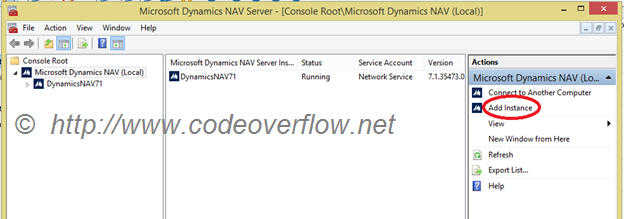
How to add new instance in Microsoft dynamics Navision Administration.

Image
For adding the new instance in NAV server follow below steps. a. Open the Microsoft Dynamics NAV administration server b. Click on Add instance c. It will open new window as show in figure. d. Now fill the all the detail as show in below image. i. Username: your computer login username  ii. Domain Name: if you have domain server name then write this otherwise you have to write your Computer Name. iii. Password, Confirm Password:  Your computer login Password. e. Now close the window by click on Ok button. It will add new instance to NAV server its show like below. Now open this instance detail and go to edit mode and change server instance name, database name, server name etc. and then save it . f. Now right click on instance name and start the service. As show in below image.